Time Off
Absence changes the time available for work
A reliable schedule needs to include the days and hours when people are not available.
YouDoTime records a user’s time-off request, the type and period of absence, its status and the description. Managers can review the request and include approved absence when allocating project and CRM pipeline work.
What the business needs to know
Who is away?
Identify the user whose working capacity will change.
When?
Record a full day, part-day or period across several dates.
Why?
Use the absence type and description to explain the request.
Is it approved?
Keep the review status with the record before relying on it in the schedule.
Why record absence?
Prevent an unavailable person from becoming a planning problem
A project plan can appear achievable until annual leave, an appointment or another absence is taken into account. If the absence lives in a separate diary, the conflict may not be found until the work is already late.
Recording time off gives managers a better measure of capacity. The purpose is not simply to keep a list of holidays. It is to understand how many working hours remain and whether promised work still fits.
The same information helps the user. Their working-time view distinguishes absence from time that should be recorded against a job.
A manager can answer three practical questions
- Does the team have enough available time for the planned work?
- Should a task be moved, reassigned or given a different deadline?
- Why does the user’s recorded working time differ from a normal week?
The time-off request
Record the period that affects availability
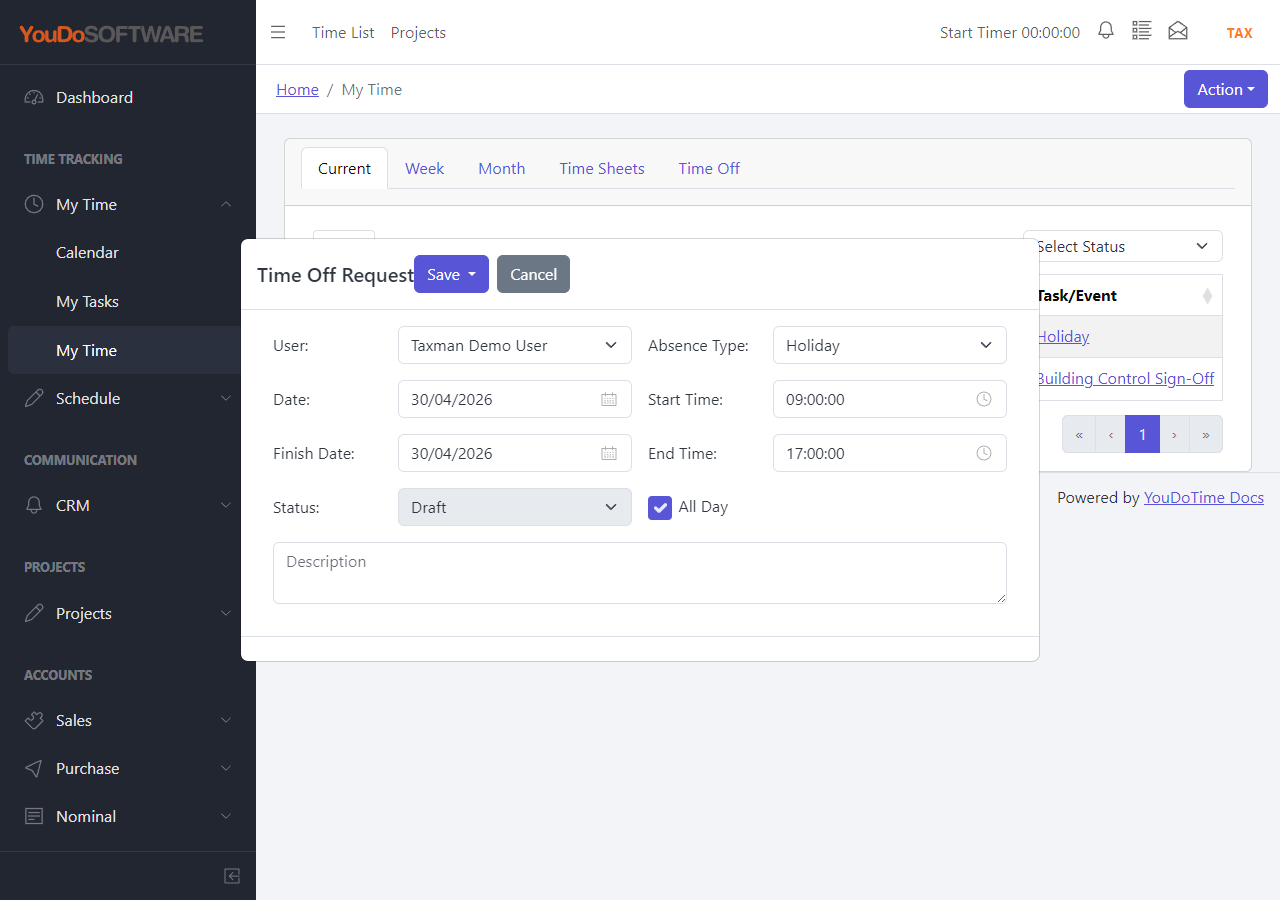
Select the user and absence type, then enter the start and finish dates. Start and end times allow a part-day request to be represented, while the all-day option covers a full working day.
The description provides any useful context and the status shows where the request is in the review process. The result is a structured absence record rather than an informal message that may be missed during planning.
- Single day, part-day or multi-day period.
- Absence type and explanatory description.
- All-day option and precise start and finish times.
- Status retained for review and approval.
This is a temporary application example and may be replaced as the interface and demonstration data are updated.
Request and approval
Make the decision visible to the user and the planner
A recorded request needs a clear outcome before it can be treated as confirmed absence.
Request
Enter the absence type, period and description for the relevant user.
Review
An authorised person reviews the request and its effect on the working schedule.
Approve or reject
Keep the decision with the record so the schedule can use confirmed information.
Availability in the schedule
Use absence before allocating the next task
The team schedule can include availability and time off alongside project and CRM pipeline tasks. Managers can review absence within the same date range used to allocate the work.
This makes the benefit immediate. The business can move a task, choose another person or change a deadline before the absence affects the customer.
- Include absence when reviewing working capacity.
- Keep planned work away from unavailable dates.
- Explain reduced recorded hours in the user’s week.
Example: a Thursday that no longer fits
A project task has six hours scheduled for Thursday. The assigned user then has an approved half-day absence, leaving only three and a half working hours.
The planner can see that the original allocation no longer fits. Part of the task can be moved to Wednesday, assigned to another user or rescheduled before the customer deadline is put at risk.
The absence has not increased productivity by itself. It has made the available capacity accurate enough to plan responsibly.
Scope of the feature
Time planning, not payroll administration
YouDoTime records absence and its approval data so it can be considered during scheduling and time review.
This page does not claim payroll processing, statutory leave calculations or an automatic holiday-entitlement engine. The purpose is to make team availability more accurate when work is allocated.
The practical benefit
Project delivery, sales activity and absence all compete for the same finite working week.
By recording time off with the rest of the time-management information, a manager can plan from the hours genuinely available instead of the hours assumed to be available.
Use accurate availability in the team plan
Continue to the schedule to allocate project and pipeline work around the people who are available.