Team Scheduling
Allocate limited time before the work competes for it
A schedule turns a list of work into a plan. It shows what needs to be done, who is expected to do it and how many hours have been allocated.
YouDoTime schedules project tasks and CRM pipeline tasks alongside team availability and time off. Managers can plan customer delivery and sales activity using the same working week.
What a manager needs before allocating work
The work
Project tasks and sales-pipeline tasks that need time.
The people
Who is responsible and when they are available.
The hours
The allocated budget and the dates on which it will be used.
The constraints
Deadlines, existing commitments, working capacity and absence.
Why schedule time?
Make sure the plan fits inside the working week
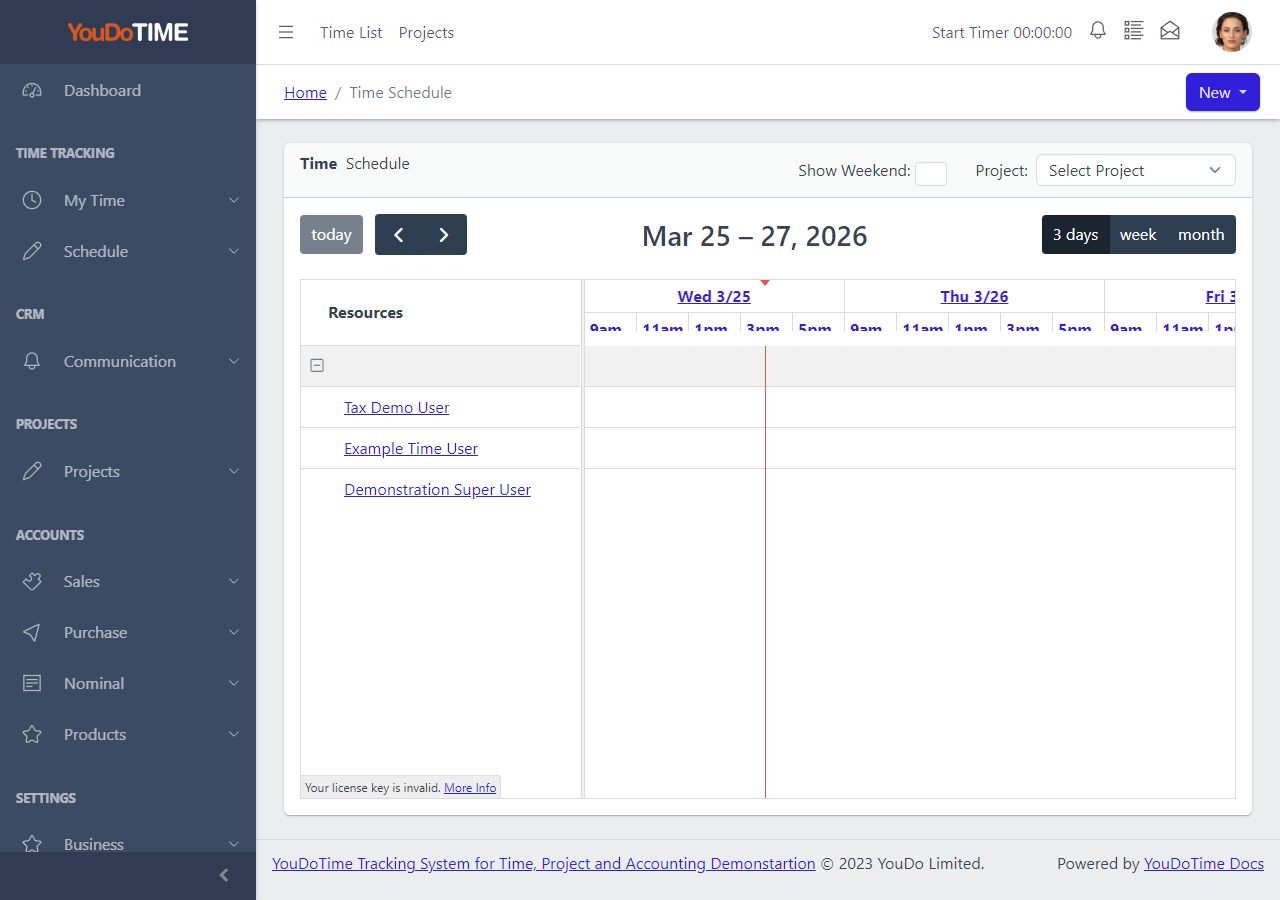
A deadline tells a manager when work must be finished. It does not show whether the team has enough time to complete it. Scheduling adds the missing information by placing the allocated hours against people and dates.
The planner provides a practical view of the work waiting to be assigned and the daily capacity of the team. This helps managers identify an overloaded day before it becomes a missed deadline.
- Review tasks waiting to be scheduled.
- See the allocated hours alongside each task.
- Place work against the users and dates available.
- Filter the view by project and task status.
This is a temporary application example and may be replaced as the interface and demonstration data are updated.
Schedule the job
Plan delivery work and sales activity
Some work belongs to a customer project: design, installation, training or another deliverable. Other work belongs to the CRM sales pipeline: preparing a quotation, arranging a demonstration or following up a lead.
YouDoTime can show both types of task in the schedule. Managers can switch project tasks and pipeline work on or off, then review them against status, dates and the people assigned.
This makes pre-sales work visible when planning capacity. A promising sales opportunity still uses real working hours, even though it has not yet become a project.
Projects and CRM pipeline work in one populated schedule
Replace this panel with an application capture showing both Tasks and Pipeline enabled, with planned and actual events visible across several users.
Suggested demonstration data: one customer project task, one quotation task from a sales lead and one user with limited availability.
Capacity and absence
Schedule the person, not just the task
A task can fit the deadline and still fail because the assigned person is already committed or away.

Working capacity
Review the user’s available hours before adding another task to the day.

Existing commitments
See planned work for other projects and pipeline tasks before making a new promise.
Time off
Include approved absence in the same date range so work is not allocated to somebody who is unavailable.
Budget and actual time
Compare what was allocated with what the work required
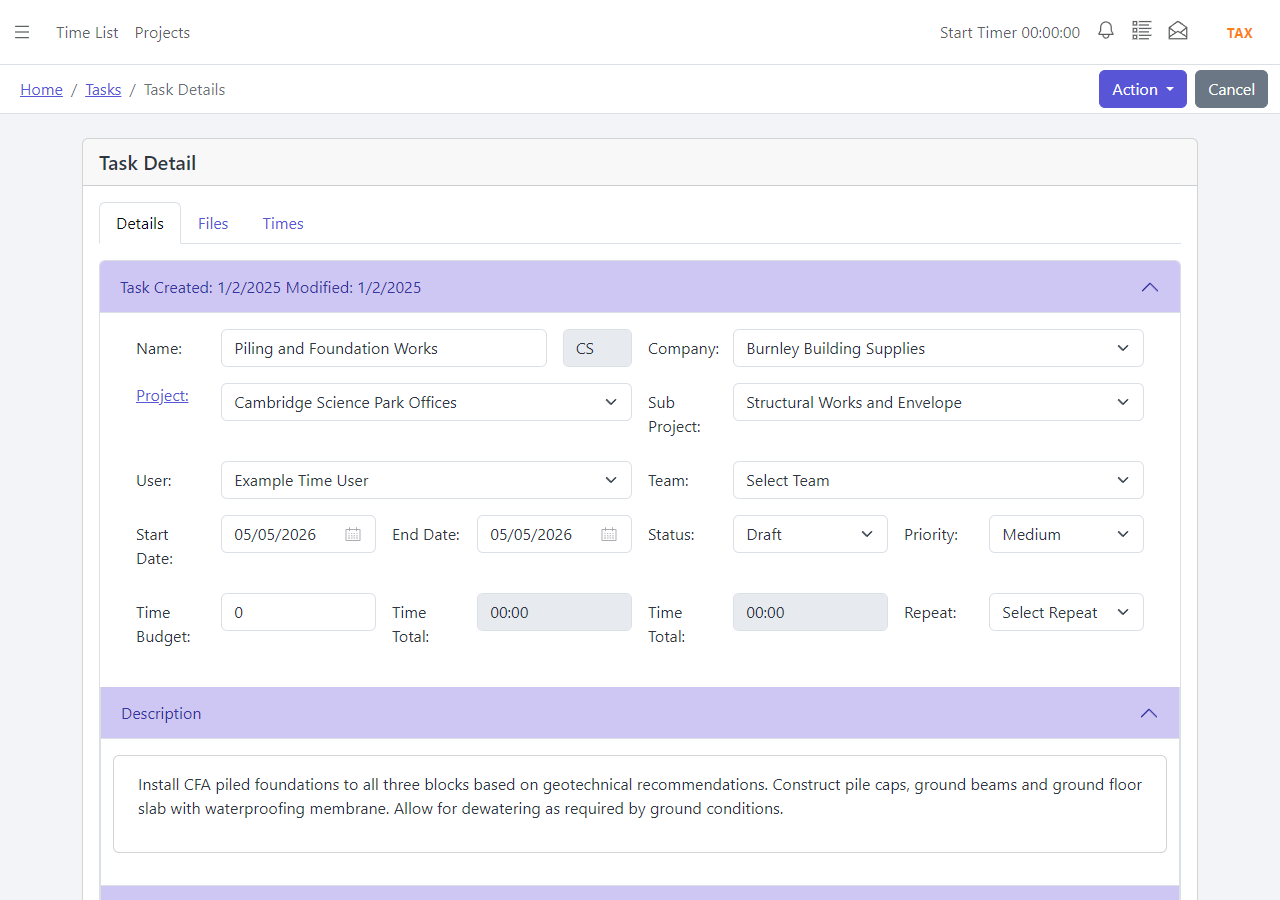
Allocated hours are the budget. They represent the time expected for the task and can be scheduled across the people and dates responsible for it.
Actual hours are the time taken. They come from the users’ recorded time while the task is carried out.
Both figures are needed. The schedule answers “what do we expect to happen?” and the recorded time answers “what actually happened?” The difference improves future estimates and warns a manager when the remaining work may no longer fit the original plan.
- Allocate the expected hours to the task.
- Schedule the user and dates responsible for delivery.
- Review actual recorded time as the work progresses.
This is a temporary application example and may be replaced as the interface and demonstration data are updated.
A planning example
Do not promise the same Thursday twice
A user has six hours of customer project work allocated to Thursday. A CRM opportunity also needs three hours to prepare a quotation, but the user has only seven hours of working capacity.
The schedule exposes the two-hour conflict while there is still time to move the quotation, reassign the project task or change the customer expectation.
The benefit of planning in hours
Dates alone would show both jobs due on Thursday. Allocated hours show that the work does not fit.
After Thursday, actual recorded time can be compared with the plan. The business learns whether the original estimates were realistic instead of repeating the same scheduling problem next week.
Continue from planned time to recorded time
See how users capture the actual hours, or explore how absence changes the capacity available to the schedule.